![biarri-networks-logo.png]](https://fondhelp.biarrinetworks.com/hs-fs/hubfs/biarri-networks-logo.png?height=40&name=biarri-networks-logo.png)
Types of comments
FOND allows you to add several types of comments to a project:
 |
General comments do not have a geometry associated with them. They can be used to comment on the project as a whole. |
 |
Point comments allow you to pin a location on the map. They are useful for commenting on addresses, poles, structures, and so on. |
 |
Polygon comments allow you highlight a larger area on the map. They are useful for commenting on multiple items at once: streets, routes, and so on. |
 |
Line comments allow you to draw a line on the map. They are useful for indicating preferred paths. |
 |
Arrow comments are a variation of the line comments but with arrowhead to indicate direction. These can be useful to communicate where something should be moved to, or to indicate direction. |
Because collaboration typically needs to happen between many parties, comments can be added and viewed by anyone with any level of share access to the project. A Platform Seat is not required, and the user does not need to be a member of your workspace.
View comments in a list
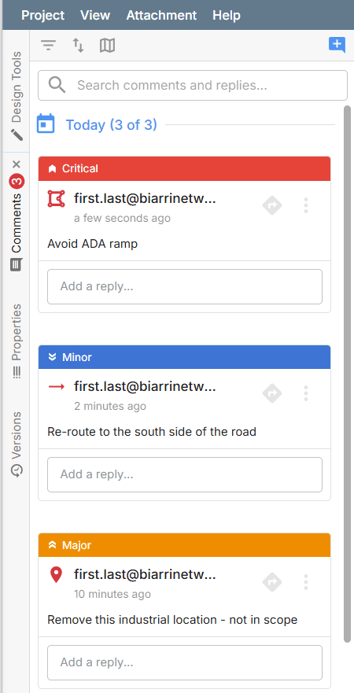
Once you have a project open, open the comments widget. This is typically on the left of your screen, but you can also find it via View > Layout > Comments.
The icon indicates the number of unresolved comments in the project. In your first collaboration project you will not see any comments unless they have already been added by other people who the project is shared with.
Comments will be shown in a list, and you may need to scroll through the list to view all of the comments.
View comments on the map
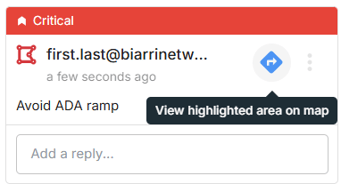
From the comments list, you can "zoom" or "pan" to a specific comment on the map by clicking the View on map button.
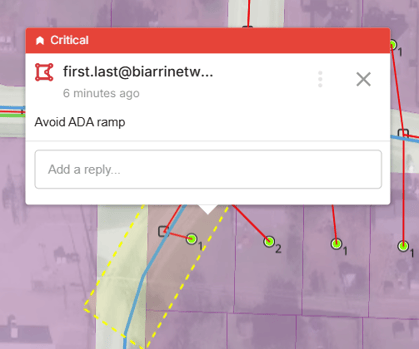
Alternatively, you can explore the map and click on a point or polygon comment to see it highlighted in the comments list and displayed in a popup on the map.
Hide or show comments via the legend
Comments can be toggled on or off via the legend, allowing for great control on what you want to see within the map.
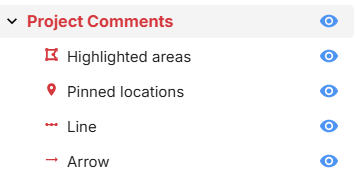
Create a new comment
To create a comment, click on the Add comment button and then the icon corresponding to the type of comment that you want to create.
When you create a comment, it is associated with the project Version that you are currently viewing.
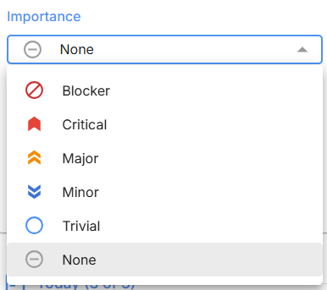
When you create a comment, you can also elect to set an Importance level.
For general comments, click Add note and simply type in your comment. Click Comment to complete, or Cancel to back out of creating the comment.
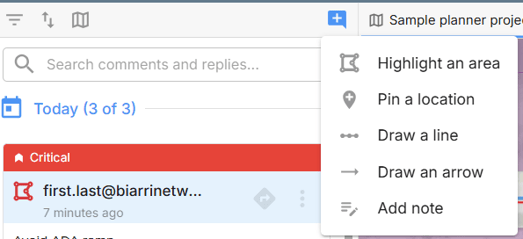
For point comments, click Pin a location, click on the location on the map that you want to pin, and write your comment.
For polygon comments, click Highlight an area and draw a polygon on the map. Click on the map to create each new vertex, and complete the polygon either by double-clicking or hitting the Enter key. Write you comment and click Comment to complete.
For line comments, click Draw a line. Click on the map to create each new vertex, and complete the line either by double-clicking or hitting the Enter key. Write you comment and click Comment to complete.
For line comments, click Draw an arrow. Draw your line from start point to end point. Line the line comments, arrow comments can have as many vertices as you need.
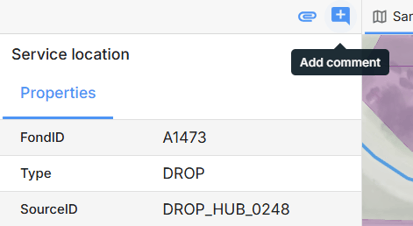
TIP: If you need to create a comment for a specific feature in the design, try the quick comment function. Simply click on a feature on the map, select the feature that you want from the feature pop-up, then click the Add comment button from the feature properties. The comment will be pre-populated with the feature's FondID.
Edit and delete comments
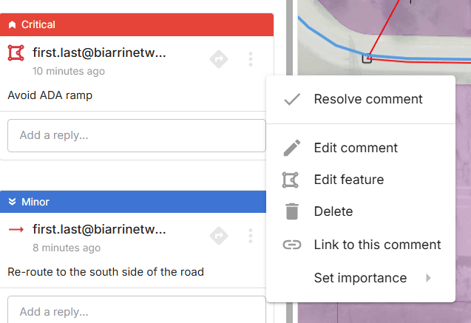
You can edit or delete your own comments, but not comments created by others. Access these options from the More options menu.
Respond to a comment
You can respond to any comment on the list, whether it was created by yourself or someone else. Click on a comment in the list, and start typing in the Add a reply... field. Click Reply to complete.
There is no limit to the number of responses on a single comment.
Resolve a comment
The Resolve comment button can be used to indicate which comments have been actioned or are no longer relevant.
Filter the comments list
The filter icon can be used to filter the comments list based on Resolution, Importance, or Version.
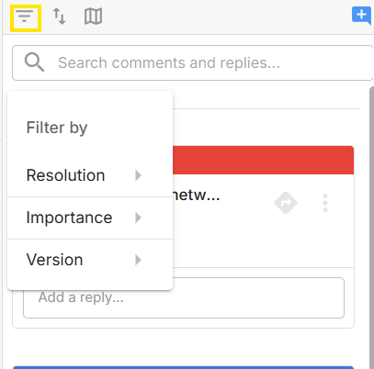
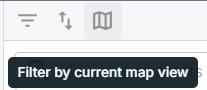
On projects that have a lot of collaboration it can sometimes be hard to focus only on the areas that are of current interest. To help with this we have implemented a feature that allows you to filter the comments so that it only shows you the comments within the current map view. As you move around the map the list will update as new comments come into view.
Sort comments
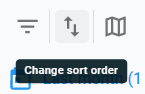
You may sort comments either by:
- New Comments - Comments are sorted from newest to oldest comments
- Latest Activity - Comments are sorted by activity - if a comment has a new reply it will be moved to the top for easy reading.
Search comments
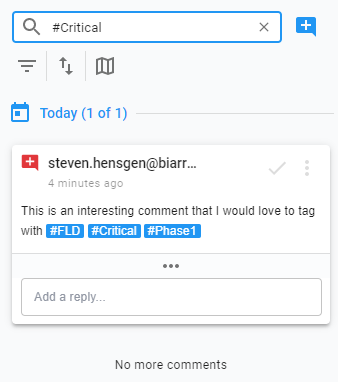
Use the search bar to search for comments containing certain keywords or tags.
Tag comments
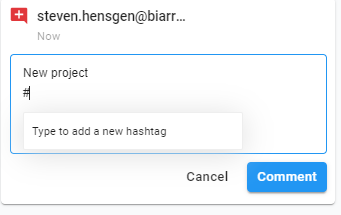
When creating a comment or reply you can #tag your content. This makes it easy to later search for other comments or replies that include a specific #tag.
Tag other users
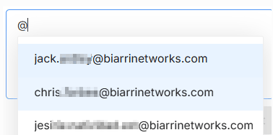
You can tag other users in a comment by using the @ or + symbol and typing in their email address. They will receive an email notification with a link to the project.
FOND will allow you to choose from the addresses of all users with who you have shared before.
If you enter another email address, please be aware that the user will not be able to see the comment unless they have a FOND login. However, they can easily create this for free!
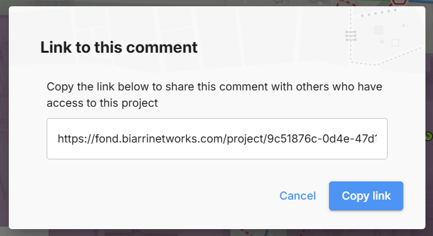
Link to a comment
From the More options menu, to a specific comment to share it with others who have access to the project.