![biarri-networks-logo.png]](https://fondhelp.biarrinetworks.com/hs-fs/hubfs/biarri-networks-logo.png?height=40&name=biarri-networks-logo.png)
A FOND project is made up of panels arranged around the map, such as the legend, the features table and the design tools. You can show or hide each panel, move it anywhere on the screen, and resize it. Arrange them to suit how you work, for example with more room for the map, or the features table beside the map instead of below it.
FOND saves your layout automatically, so it’s there the next time you open the project. You can always go back to the default layout.
Panels you can use
| Panel | What it shows |
|---|---|
| Design Tools | The steps for building your plan or design: architecture, input data, design, artifacts and reports |
| Legend | The layers on the map, with controls to show and hide them |
| Properties | The attributes of the feature you’ve selected |
| Features | A table of every feature in a layer |
| Versions | The project’s versions |
| Comments | The comments on the project |
| Overlays | Reference layers from your Collaboration projects or georeferenced images |
| Error log | Errors and warnings from generating your plan or design |
| Topological view | The splice diagram for your network |
| Map | The map itself. It’s always shown and can’t be removed. |
Which panels are available depends on the project type.
The default layout
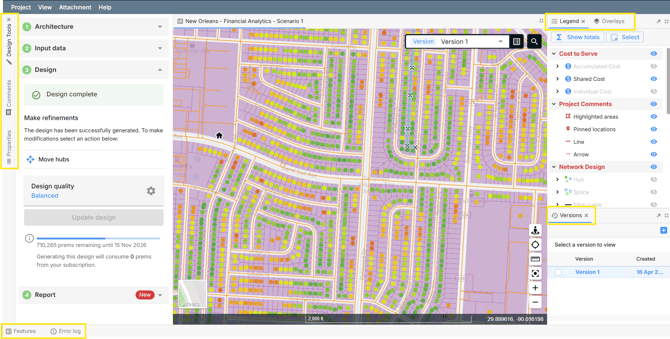
In a new project, the map fills the middle of the screen:
- Left side: Design Tools, Comments and Properties
- Right side: Legend and Overlays, with Versions below
- Bottom: Features and Error log
Hide a panel
The panels on the left, right and bottom edges sit in side bars. Click a panel’s tab to slide it open, and click the tab again to tuck it away. This keeps the map large while your panels stay one click away.
Open a closed panel
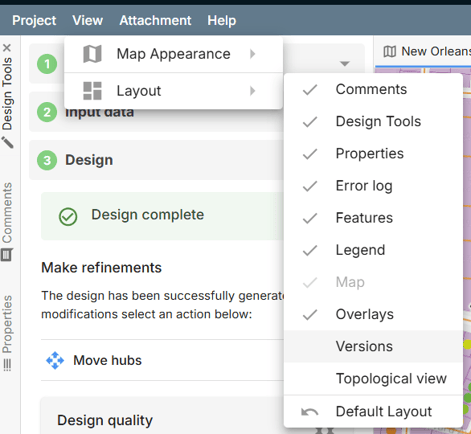
- In the project menu, choose View › Layout. Panels with a tick are already on screen.
- Click the panel you want to add.
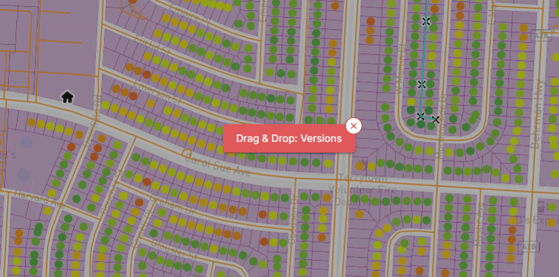
- The screen dims and a Drag & Drop box with the panel’s name appears in the middle of the map. Drag it to where you want the panel, and drop it.
To cancel, press Esc or click the x on the Drag & Drop box.
Close a panel
Either:
- Click the x on the panel’s tab, or
- Choose View › Layout and click the ticked panel.
Move a panel
Drag the panel’s tab to a new place. As you drag, FOND highlights where the panel will land. Drop it when the highlight is where you want it.

Where you can drop a panel
| Drop it… | Result |
|---|---|
| On another panel’s tabs | It joins that group as another tab, and you switch between them with the tabs |
| On the top, bottom, left or right edge of another panel | It splits that space and sits above, below or beside that panel |
| On the left, right or bottom side bar | It docks in that side bar, ready to slide open when you need it |
Resize a panel
Drag the divider between two panels, or the edge of an open side bar panel.
Make the map full screen
Click the maximize button at the top right of the map to make it fill the screen. Click it again to bring your panels back.
Pop a panel out into its own window
Some panels can open in a separate browser window, which you can move to a second monitor. To do this, click the arrow at the top right of the panel area: Show selected tab in floating window.
You can pop out the Legend, Overlays, Versions, Comments, Features and Error log. To put a panel back in the layout, close its window.
Go back to the default layout
Choose View › Layout › Default Layout. This replaces your saved arrangement with the original layout.