![biarri-networks-logo.png]](https://fondhelp.biarrinetworks.com/hs-fs/hubfs/biarri-networks-logo.png?height=40&name=biarri-networks-logo.png)
Once your input data is complete, the Design step generates your network. You can then refine it and update it as many times as you need.
Step 1: Choose a design quality
| Setting | Best for | Time limit |
|---|---|---|
| Express | Quick results while you’re trying options | Up to 20 minutes |
| Balanced (recommended) | Most designs | Up to 60 minutes |
| Extended | Large or complex areas, where extra time may give a better design | Up to 200 minutes |
Most plans often finish well within the time limit, so treat the above information like a worst-case scenario.
Step 2: Check your premises
Generating a design uses premises from your workspace’s subscription. Before you generate, FOND shows how many premises you have left, and how many this design will use. If you don’t have enough, workspace admins can click Buy more.
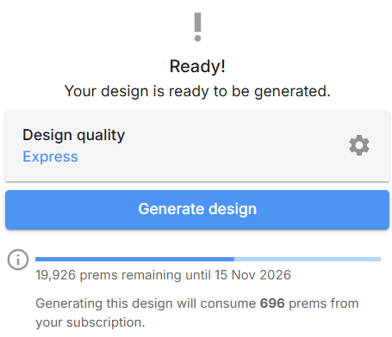
More information: How is a premises defined? · When is a premises consumed?
Step 3: Generate
Click Generate design. FOND works through each stage, from placing drop and distribution hubs to counting materials and calculating Cost to Serve. You can leave the project and come back later, or click Cancel to stop.
When it’s finished, you’ll see Design complete.
If something goes wrong
If FOND finds problems, they appear in an Errors list. Click an error for details, and click Open feature inspector to see the affected features on the map. Fix your input data, then generate again.
More information: Common design failures · Long design time
Step 4: Refine the design
Once your design is complete, you can fine-tune it under Make refinements:
| Refinement | What it does |
|---|---|
| Blockers | Draw lines that cables must not use |
| Hubs | Drag drop and distribution hubs to better locations |
| Drop assignments | Reassign service locations to different hubs |
| Reset edits | Undo all your refinements |
To move hubs after you’ve changed drop assignments, you need to reset the drop assignments first.
After refining, click Update design to apply your changes.
Keeping your design up to date
If you change your input data, refinements or quality setting after generating, FOND shows You have made changes that may affect your design. Click Update design to apply them.
Until you update, the Artifacts and Reports steps stay locked, so your outputs always match your latest design.