![biarri-networks-logo.png]](https://fondhelp.biarrinetworks.com/hs-fs/hubfs/biarri-networks-logo.png?height=40&name=biarri-networks-logo.png)
In the Design step, FOND designs the electrical network: where transformers, pull boxes and joint boxes go, how primary and secondary wire is routed, and which phase each part of the primary network carries.
The Design step has two parts:
- Optimize, covered here
- Override, which is optional. See Override a power design.
Before you start
Make sure that:
- The right architecture is applied. See Configure a Power Design architecture.
- Your input data is complete, and you’ve checked it over. See Preparing input data for Power Design.
Set your inputs
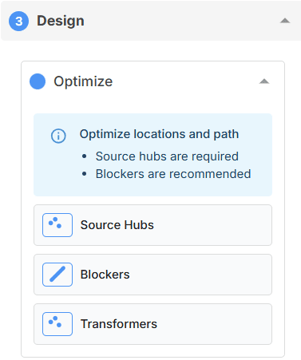
Under Optimize, set up:
| Input | Required? | What it does |
|---|---|---|
| Source hubs | Yes | Where power enters the network. Draw or upload them. They snap to underground points and poles, and should not be located on a point with a leadin. |
| Blockers | Optional | Paths the design must not cross. You can upload separate primary and secondary blockers. |
| Transformers | Optional | Fixes transformer locations you’ve already decided on. Each one must sit on an underground point, and not on a source hub. Leave this empty to let FOND determine locations itself. |
Generate
Click Start design generation. FOND generates the power design, then the bill of materials. When it finishes, you’ll see Power design complete.
To stop a run, click Cancel. The last completed design will stay visible on the map.
Review the design
Your design appears in the legend under Network Design › Output:
| Layer | What it shows |
|---|---|
| Sources | Where power enters the network |
| Transformers | Placed transformers, grouped by phase |
| Boxes | Primary joint boxes and secondary pull boxes |
| Meters | One for each address |
| Primary wires | The primary network, colored by phase |
| Secondary wires |
Wiring from transformers and pull boxes to meters |
See also: Inspecting a plan or design.
If something goes wrong
If FOND can’t complete the design, you’ll see Power solver failed.
- Check the issue layers on the map. Validation Issues and Design Issues highlight problem features in red. Click a feature and read its Message attribute to find out what’s wrong.
- Click View Logs to see the solver’s log files.
Fix the problem, then click Re-run design generation. If you can’t work out the cause, contact support and include the logs and your project URL.
Refine the design
Most designs take a few rounds. Adjust your source hubs, blockers or fixed transformers, then click Re-run design generation.
Once the locations and routes are right, you can take manual control of the final network with overrides.
Tip: Before trying a different approach, create a new project version with Continue from most recent version, so you can compare options and go back if you need to.
Keep your design up to date
If you change your input data or architecture after generating, make sure to regenerate your design to apply the changes.