![biarri-networks-logo.png]](https://fondhelp.biarrinetworks.com/hs-fs/hubfs/biarri-networks-logo.png?height=40&name=biarri-networks-logo.png)
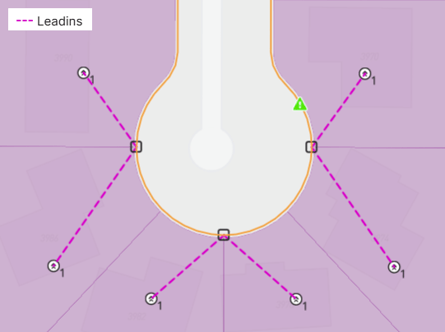
A leadin is the approximate service path from the main network to an address. It’s a straight line with two points:
- One end snapped to an underground point or a pole on the network
- The other end snapped to an address
Leadins tell FOND where each address should connect to the network. They’re used in Fiber Design and Power Design projects.
Why leadins matter
When FOND generates a design, it uses each address’s leadin to decide where that address connects to the network. Good leadins give you a design that matches how the network would really be built: service coming from the right side of the building, connected to a sensible underground point or pole.
If an address doesn’t have a leadin, FOND still serves it using the shortest path between the address and a nearby point or pole. That’s not always the connection you’d choose, so it’s worth making sure every address has a leadin that you are happy with.
What make a good leadin?
- Every address has exactly one leadin. FOND will only consider one, even if multiple are present.
- Both ends are snapped: One to an underground point or pole, the other to the address.
- The service direction makes sense. The leadin connects to the part of the network the address would realistically be served from.
Get leadins into your project
Generate them with the data preparation tools
FOND can generate leadins for you from the data already in your project:
- Addresses
- Underground path and points
- Aerial spans and poles
- Parcels
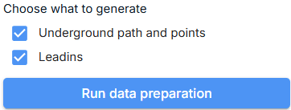
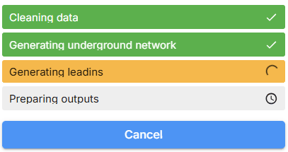
To generate them, ensure that leadins are selected in the settings located in the Candidate network section of your Input data step, and then click Run data preparation.
The more complete your input data is, the better the generated leadins will be.
Upload your own
If you already have leadins, you can upload them instead. Each leadin must:
- Be a straight line with two points (a simple LineString)
- Have one end exactly on an underground point or pole, and the other end exactly on an address
FOND marks leadins that aren’t snapped at both ends as disconnected (see below), so check your data in a GIS tool before you upload, or use FOND's own drawing tools.
Review your leadins before you design
Always review your leadins before you run a design. Depending on your data, FOND sometimes:
- Misses leadins for some addresses
- Connects leadins to an underground point or pole you wouldn’t choose
The most common corrections are adding missing leadins and re-snapping leadins to a different point or pole.
Tips for reviewing
- Think about how the cables or wires will run. A good leadin depends on where the network will reach the address. Picture the route the service will take from the street to the building, and check that the leadin connects to the right side. This gets easier after a few designs.
- Use satellite imagery and street view. Switch to the satellite map to see driveways, buildings and where existing services come in. Use street view to check the side of the street the service should come from. See Moving around the map in FOND.
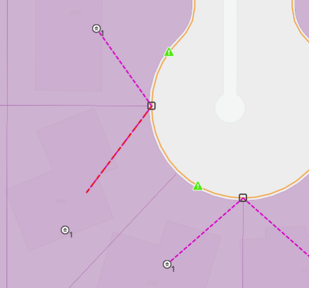
- Look for red leadins. They aren’t snapped at one or both ends.
Edit leadins
- Open the drawing tools in either of these ways:
- Input data › Modify data › Draw
- Input data › Leadins › Draw
- Make your changes:
- Add a leadin: Draw a line from an underground point or pole to the address.
- Re-snap a leadin: Drag an end of the leadin onto a different point, pole or address.
- Move a leadin: Select it and drag it to a new position, then check that both ends are still snapped.
- Delete a leadin: Select it and delete it.
- Save your changes
Tip: When editing leadins, be mindful of whether of snapping and topological editing are enabled or disabled. It is always recommended to use snapping, but whether you want topological editing will depend on what you are trying to achieve in your edit. For example, if you want to re-snap one end of a leadin to a different underground point, then you probably want it disabled.
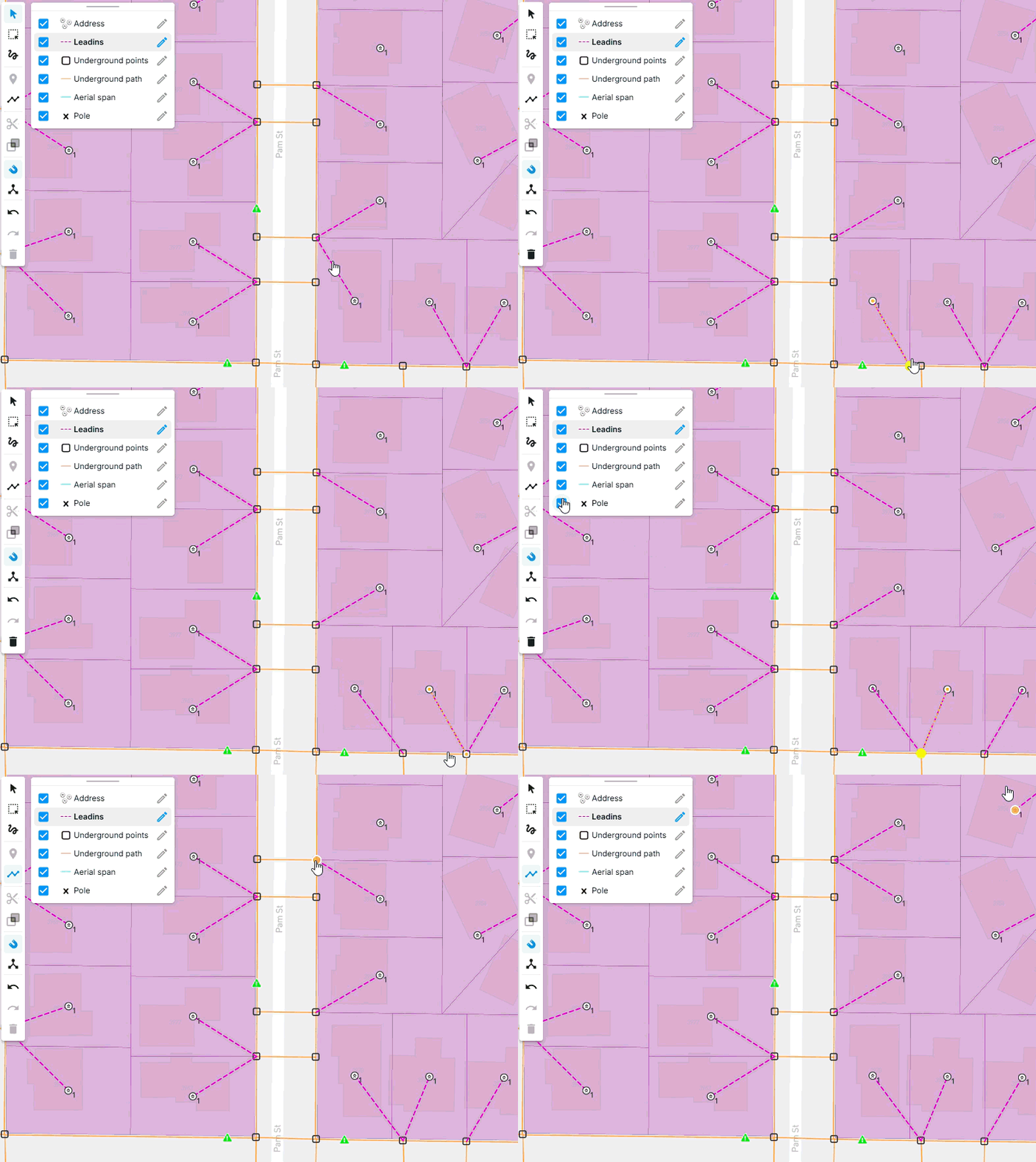
Checks as you edit
As you draw and edit, FOND checks your leadins as you work. A leadin turns red if one or both of its ends isn’t snapped. Fix every red leadin before you run your design.