![biarri-networks-logo.png]](https://fondhelp.biarrinetworks.com/hs-fs/hubfs/biarri-networks-logo.png?height=40&name=biarri-networks-logo.png)
This article shows you how to get around FOND outside of a project: the home page, finding your work, and getting back to your projects. For a broader overview, see Tour of FOND.
The home page
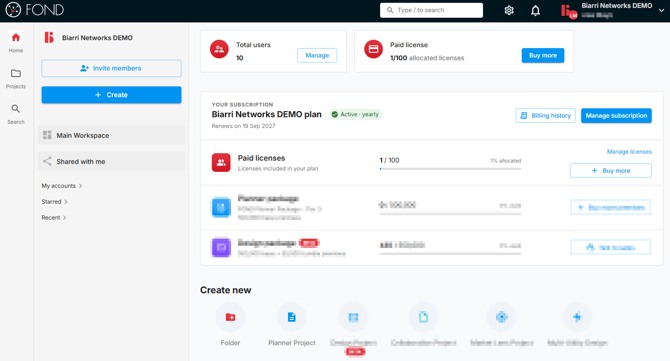
When you log in, you land on the home page of your most recently accessed FOND workspace. From here you can find, create and organize your work.
- Your home page displays details about your current subscription (for workspace administrators only), provides quick links to create new content, and provides a summary of your recently viewed items.
- The projects page holds your team’s projects and folders.
- Main Workspace is the main page containing all data that you have access to.
- Shared with me lists the projects and folders that others have granted permission for you to view and/or edit.
- Starred items, projects and folders that you have starred for easy finding
- Recent items
- The search page allows you to search for any FOND content that you have access to within the workspace.
The collapsible left panel also provides quick links to:
- Create folders, projects, and other items
- My workspaces, a list of all FOND workspaces that you have access to
Search from anywhere
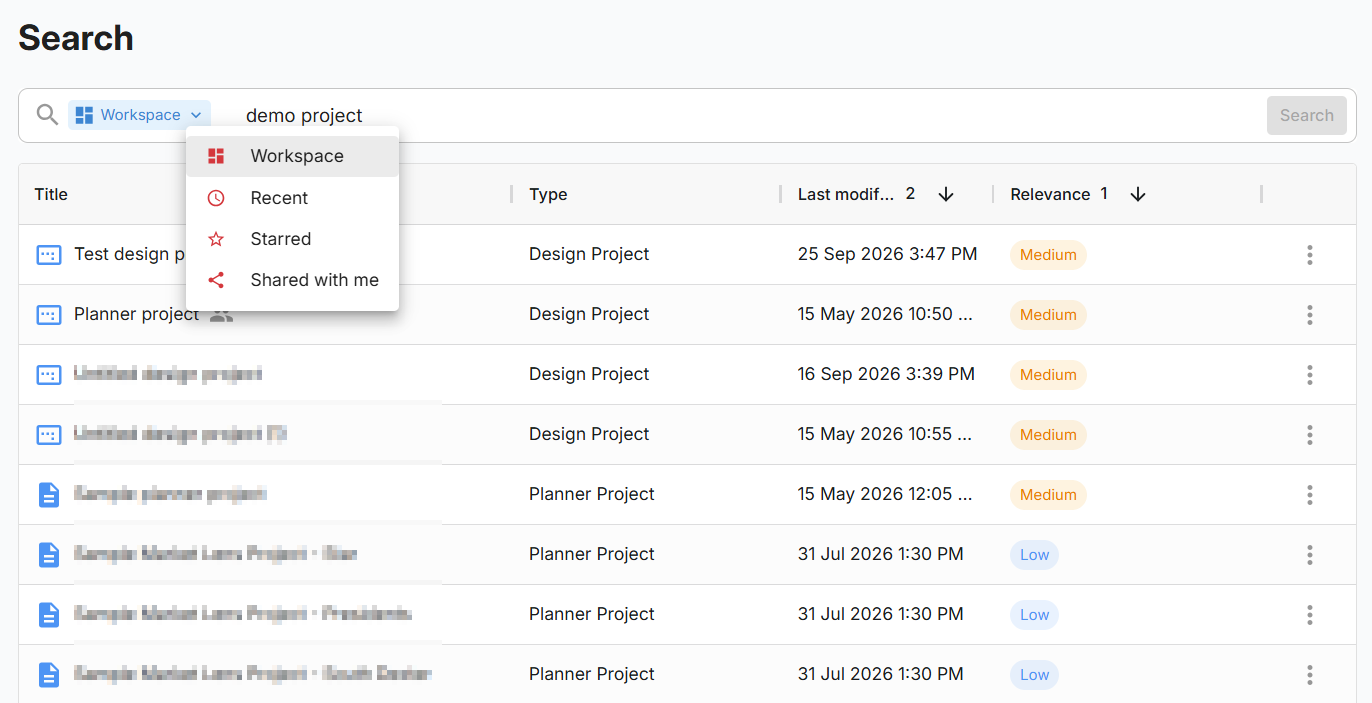
Use the search bar in the top bar to search FOND from any page, including from inside a project. From the home pages you can also find it on the left. Or just go straight to fond.biarrinetworks.com/search.
- Click the search bar and type what you’re looking for.
- Adjust the search scope to Workspace, Recent, Starred, or Shared with me
- Review the results. The results page shows how closely each result matches your search, and you can change your search term without starting again.
Filter and sort a project list
On any projects page, you can:
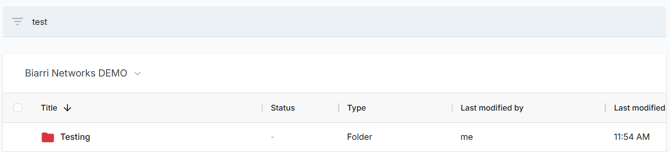
- Filter: start typing in the page’s search box to narrow the list to matching project and folder names.
- Sort: click a column heading to sort by that column. Click it again to reverse the order.
- Pin, Resize, Autosize, and Reset all columns in the projects list table.
Get back to your projects
From inside a project, click the FOND icon at the top left to return to your project pages. Your profile menu at the top right holds your account settings and the option to log out.
