![biarri-networks-logo.png]](https://fondhelp.biarrinetworks.com/hs-fs/hubfs/biarri-networks-logo.png?height=40&name=biarri-networks-logo.png)
FOND notifies you when something needs your attention, such as a new comment on a project you follow or someone mentioning you. Notifications appear in your FOND inbox and can also be sent by email. You choose which ones you receive and how.
What you’ll be notified about
| Notification | When you get it | How |
|---|---|---|
| Mentions | Someone mentions you in a comment | Immediately, in-app and by email |
| Comments |
Someone comments on a project you’re watching, Someone replies to a comment that you created |
Immediately, in-app and by email |
| Comments digest | Comments on projects you’re watching | One email a day summarizing all activity |
| Requests (admins only) | A workspace member asks for something, such as a platform license so they can create and edit projects | Immediately, in-app and by email |
Mentions in comments always notify you, whether or not you’re watching the project, unless you turn mention notifications off in your preferences.
Watch a project
Watching a project tells FOND to notify you about every new comment on it.
- Open the project.
- Click the Add to Watched icon (the bookmark) next to the project name.
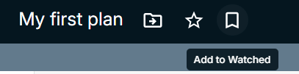
To stop watching, click the icon again.
View your notifications
Click the bell icon in the top bar to open your inbox. Each notification shows who did what, which project it was on, and when it happened.

From here you can open each notification by clicking on it, mark unread notifications as read, snooze the notification, or archive it. Clicking on a comment notification will open the project that contains the comment, and navigate the map directly to the comment location.
You can also perform actions on all notifications at once: Mark all as read, Archive all or Archive read.
Choose how you’re notified
- Click the bell icon to open your inbox.
- Click the settings icon (the cog) at the top right of the inbox.
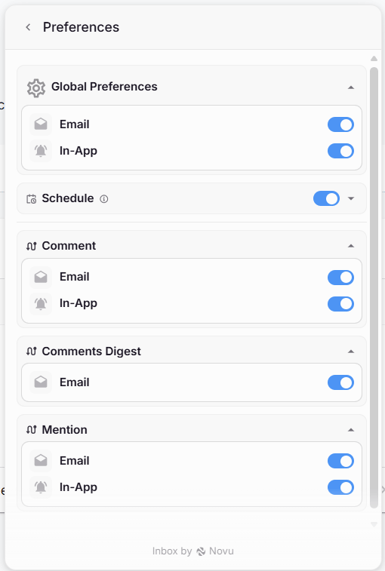
- In Preferences, turn email and in-app notifications on or off for each type:
| Type | In-app | |
|---|---|---|
| Comment | ✓ | ✓ |
| Comments Digest | ✓ | — |
| Mention | ✓ | ✓ |
To change email or in-app notifications for everything at once, use Global Preferences at the top of the panel.
Get a daily digest instead of individual emails
If you participate in busy projects, you may prefer one summary email a day. In Preferences, turn off Email under Comment, and leave Comments Digest on. You’ll still see each comment in your FOND inbox as it happens.
Set a notification schedule
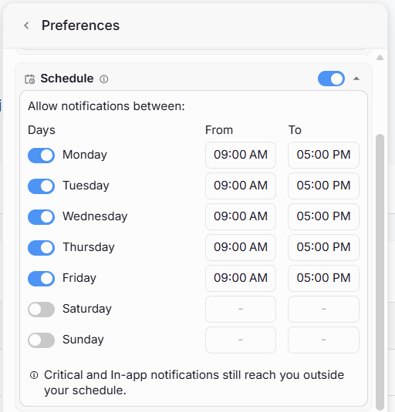
Use a schedule so that notification emails only arrive during your working hours.
- In Preferences, turn on Schedule.
- Turn each day on or off, and set the times you want notifications for that day.
By default, the schedule is Monday to Friday, 9:00 AM to 5:00 PM.