![biarri-networks-logo.png]](https://fondhelp.biarrinetworks.com/hs-fs/hubfs/biarri-networks-logo.png?height=40&name=biarri-networks-logo.png)
Folders let you group related projects, for example by region, customer or project phase. They also make sharing easier. When you share a folder, everyone you share it with gets access to the projects inside it, so you don’t have to share each project one by one.
Create a folder
- Go to your workspace’s projects page.
- Click Create and select Folder.
- Enter a name and confirm.
FOND supports nested folders. To create a folder inside another folder, open the parent folder first, then follow the same steps.
Move a project into a folder
- From within a project, use Project > Move.
- From the workspace view, click the three vertical dots to the right of the project, and then Move.
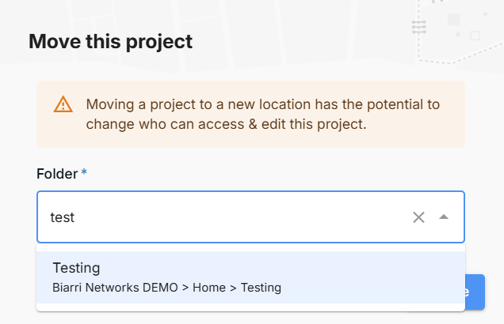
Then select an existing folder in your workspace. If you know the name of the folder you are looking for, you can start typing it to narrow down the options.
Rename or delete a folder
From the workspace view, click the three vertical dots to the right of the project, and then Edit or Delete.
- You can only modify a folder if you have Contributor or Manager permissions to the folder.
- You can only delete a folder that is empty.
Share a folder
Sharing a folder gives people access to every project inside it, including projects you add later. See Share a project or folder.
Tips for organizing your projects
- Pick one way to group projects and stick to it, whether that’s by region, customer or project stage, so everyone on the team knows where to look.
- Group by who needs access, if you often share work with outside partners or customers. A folder per partner lets you share everything with them in one step.
- Include the area or phase in project names, such as “San Diego – Phase 2 – Feasibility.” This helps a lot when you’re searching or looking at a long list.