![biarri-networks-logo.png]](https://fondhelp.biarrinetworks.com/hs-fs/hubfs/biarri-networks-logo.png?height=40&name=biarri-networks-logo.png)
The architecture sets the electrical rules FOND follows when it designs your network: how much load each meter draws, which transformers and wires FOND can use, and how long secondary runs can be.
Unlike fiber architectures, a Power Design architecture is saved with the project. It isn’t shared across your workspace.
Set up the architecture
- In the Architecture step, click Select architecture.
- Work through the Transformers, Primary and Secondary tabs, clicking Next to move between them.
- Click Save.
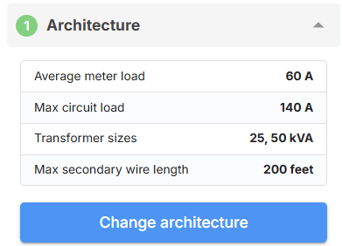
A tab marked with * has a setting that needs attention before you can save. Once the architecture is saved, the step shows a summary of the key settings.
Transformers
| Setting | What it does | Default |
|---|---|---|
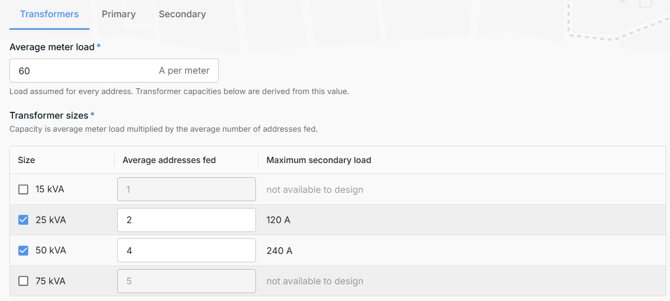
| Average meter load | The static load (in Amps at 120V) assumed for every address (diversified load estimation). | 60 A (7.2kW) per meter |
| Transformer sizes | Which sizes to use (15, 25, 50 or 75 kVA), and maximum number of meters each is allowed to feed. | 25 kVA (2 addresses) and 50 kVA (4 addresses) |
FOND uses these settings to work out each transformer’s maximum secondary load.
Primary
| Setting | What it does | Default |
|---|---|---|
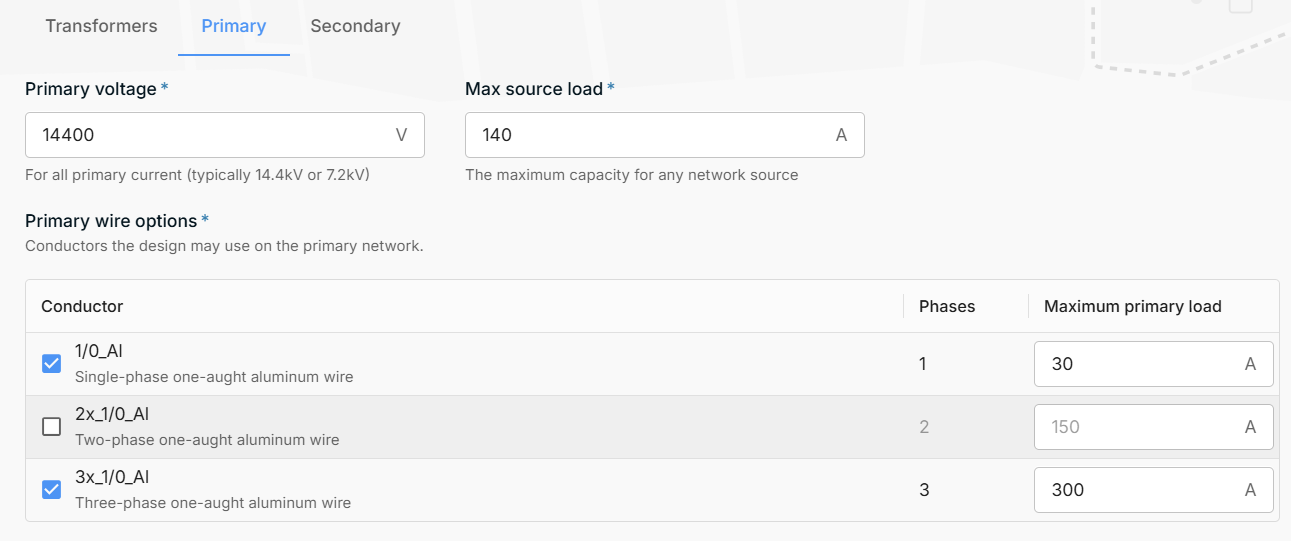
| Primary voltage | The voltage of the primary network, in Volts, line-to-neutral. | 14,400 V |
| Max source load | The maximum load each source can supply, in Amps at Primary Voltage | 140 A |
| Primary wire options | Which primary wire types the design can use: single-, two- or three-phase | Single- and three-phase |
Secondary
| Setting | What it does | Default |
|---|---|---|
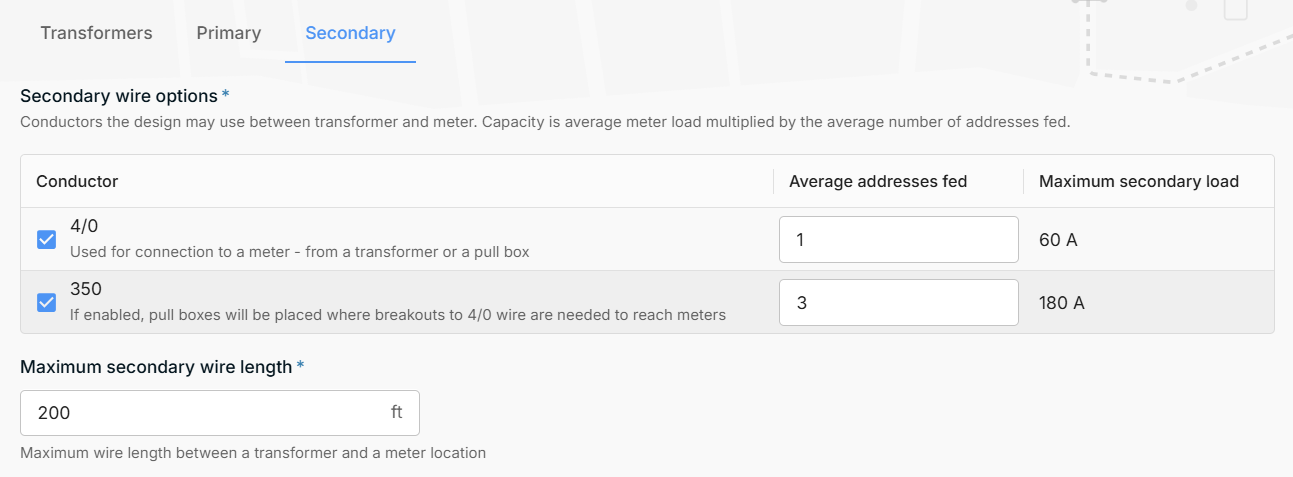
| Secondary wire options | 4/0 for meter connections, and .350, with pull boxes where it breaks out to 4/0 | Both on |
| Maximum secondary wire length | The longest secondary run allowed between a transformer and a meter | 200 ft |
Changing the architecture later
If you change the architecture after generating a design, make sure to Re-run design generation in the Design step to apply your changes.