![biarri-networks-logo.png]](https://fondhelp.biarrinetworks.com/hs-fs/hubfs/biarri-networks-logo.png?height=40&name=biarri-networks-logo.png)
A project holds everything for one piece of work: your input data, the plan or design FOND generates, its versions and any attached files. Every project has a type, which decides what you can do in it.
Before you start
To create projects, you need a platform seat in a workspace whose subscription includes that project type. Without a seat, you can still view, comment on and export projects others share with you. If you can’t create a project, ask your workspace admin.
Project types
| Project type | Use it to… |
|---|---|
| Fiber Planner | Model fiber networks for feasibility studies and business cases |
| Collaboration | Share and review your own GIS data on a map |
Create a project
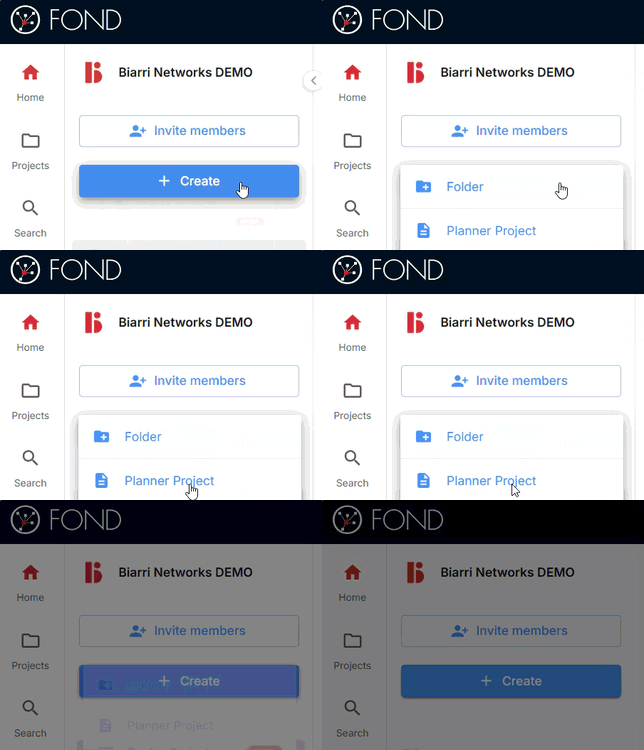
- On the home page, click Create and choose a project type.
- Enter a name your team will recognize, such as the area, customer or phase.
- Select the folder that the project should be saved in, and click Create.
 |
|
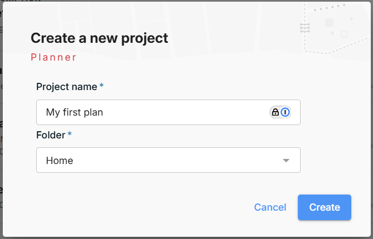
The project opens, ready for you to add data. New projects use your workspace’s default currency and units of measurement. You can change these later in Project › Settings.
Copy a project
Copying is useful when you want to try a different approach without changing the original, or without using Project versions.
-
From within a project, use Project > Make a copy.
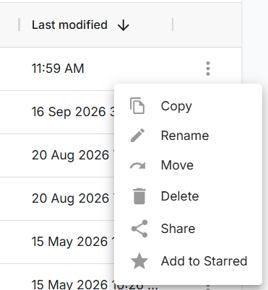
- From the workspace view, click the three vertical dots to the right of the project, and then Copy.
Tip: To compare scenarios inside one project, you can create a new project version instead of copying the whole project.
Rename a project
-
From within a project, use Project > Rename.
- From the workspace view, click the three vertical dots to the right of the project, and then Rename.
Move a project into a folder
-
From within a project, use Project > Move.
- From the workspace view, click the three vertical dots to the right of the project, and then Move.
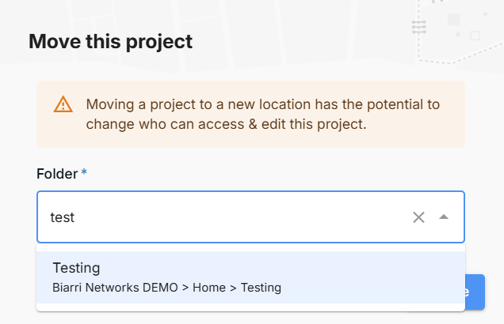
Then select an existing folder in your workspace. If you know the name of the folder you are looking for, you can start typing it to narrow down the options.
Delete a project
From the workspace view, click the three vertical dots to the right of the project, and then Delete.Deleting is permanent and will affect other users who have access to the project. Before deleting, export anything you want to keep. See Export a project .