![biarri-networks-logo.png]](https://fondhelp.biarrinetworks.com/hs-fs/hubfs/biarri-networks-logo.png?height=40&name=biarri-networks-logo.png)
FOND’s drawing tools let you add and correct your input data directly on the map. Which tools you get depends on the project type and the layer you’re editing.
Which editor will I see?
FOND has two kinds of drawing editor:
- The candidate network editor (design projects). This lets you edit several layers at once: underground path and points, aerial spans and poles, leadins and addresses. These layers together form your candidate network, and editing them together makes it easy to keep everything connected.
- Single-layer editors. These let you edit one layer at a time. Design projects use them for addresses, parcels, streets and sources. In Fiber Planner, every layer is edited this way.
| Layer | Fiber Planner | Fiber Design | Power Design |
|---|---|---|---|
| Underground path and points | Single layer | Candidate network editor | Candidate network editor |
| Aerial spans and poles | Single layer | Candidate network editor | Poles only, in the candidate network editor |
| Leadins | — | Candidate network editor | Candidate network editor |
| Addresses | Single layer | Single layer or candidate network editor | Single layer or candidate network editor |
| Parcels | — | Single layer | Single layer |
| Streets | — | Single layer | Single layer |
| Sources | Single layer | Single layer | Single layer |
Open the drawing tools
In a design project, from the Input data step:
- To edit one layer: open Addresses, Parcels, Streets or Sources and click Draw.
- To edit part of the candidate network: under Candidate network, open Underground path and points, Aerial span and poles or Leadins, and click Draw. That layer starts out editable.
- To edit all layers together: under Refine, choose Modify data and click Draw.
In Fiber Planner, open the layer’s menu in the Input data step and choose Draw.
When the drawing tools open, a toolbar appears at the top left of the map.
The candidate network editor toolbar
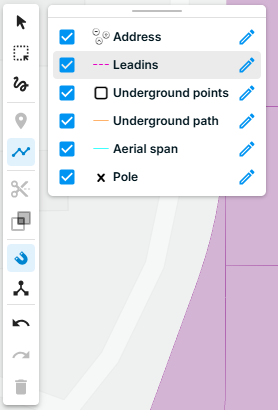
| Group | Tool | What it does |
|---|---|---|
| Select | Select feature | Click a feature to select it. Shift-click to add more features to the selection. |
| Polygon select | Click to place corners, then double-click to close the shape. Selects every feature inside it or crossing it. | |
| Lasso select | Click and drag a freehand shape. Selects every feature inside it or crossing it. | |
| Draw | Draw a point | Adds a point to the active layer |
| Draw a line | Adds a line to the active layer | |
| Modify | Split features | Cuts lines where you draw across them |
| Join features | Joins two lines that share an end into one line | |
| Options | Snapping | Turns snapping on or off. The arrow beside it opens Snap Options. |
| Topological editing | Turns topological editing on or off | |
| History | Undo / Redo | Steps back or forward through your changes |
| Delete | Deletes the selected features |
Which tools appear depends on the editor and layer. For example, Split and Join aren’t available for leadins or aerial spans. Parcels have their own polygon tools (see below).
Select features
- Click a feature to select it, and Shift-click to add more.
- Use Polygon select or Lasso select to select many features at once.
In the candidate network editor, your selection can include features from several layers. That means you can move or delete underground path, points and leadins together in one step.
Selection tools only pick up features in layers that are currently editable (see Choose which layers to edit).
Draw features
- Choose Draw a point or Draw a line.
- Click the map to place a point, or click each vertex of a line. To finish a line, double-click the last point or right-click.
The draw tool stays active after each feature, so you can draw several in a row.
- Leadins finish automatically after two points, because a leadin is always a single straight line.
- To extend an existing line from one end, select its end vertex, hold Alt and click the map. This only works for underground paths, not leadins or aerial spans.
Edit lines
- Reshape a line: select it, then drag its vertices.
- Split lines: select one or more lines, click Split features, then draw a cutting line across them. Press Esc to cancel.
- Join lines: select exactly two lines that share an end point, then click Join features.
After a split or join, a message appears with an Undo option.
Edit parcels
The parcels editor has extra tools for polygons:
| Tool | What it does |
|---|---|
| Cut features | Cuts an area out of a parcel, for example a road |
| Split features | Divides a parcel into two or more parcels |
| Union features | Merges two or more parcels into one parcel |
| Combine features | Groups two or more parcels into a single multi-part parcel |
| Uncombine features | Separates a multi-part parcel back into individual parcels |
See Parcels for when to use them.
Choose which layers to edit
In the candidate network editor, a layer panel floats on the map. Each layer has:
- A checkbox to show or hide the layer
- A pencil button to turn editing on or off for that layer
Click a layer’s name to make it the active layer. New features are drawn into the active layer. The point and line tools are only available when the active layer is the right type and editing is turned on for it.
Snapping
Snapping makes new and moved features connect exactly to existing ones. It’s on by default each time you open the drawing tools. As you draw, a preview shows where the cursor will snap.
To change how close the cursor needs to be before it snaps, click the arrow beside the snapping button and choose a snap distance from Close (5 px) to Far (30 px). The default is 10 px. FOND remembers your choice in this browser.
FOND doesn’t snap to layers that are hidden.
Always keep snapping on unless you specifically need to place something near another feature without connecting to it.
Topological editing
With topological editing on, features that share a vertex stay connected. When you move a shared vertex, every feature connected to it moves too. With it off, you can move one feature away from the others.
Topological editing is on by default in the candidate network editor. Poles and spans always stay connected, even when topological editing is off.
| You want to… | Topological editing |
|---|---|
| Move a point and keep its connected path and leadins attached | On |
| Re-snap one end of a leadin to a different point or pole | Off |
Smart editing
For underground and aerial layers, FOND does some of the connecting work for you, so it’s quicker to draw a well-connected network.
Underground path and points (design tools only)
- Drawing a path adds an underground point at each end, unless there’s already a point or pole there. Existing paths are split where the new path’s ends touch them.
- Placing an underground point on a path splits the path there.
- Splitting a path adds underground points where it’s split.
- FOND won’t add a new point on top of an existing one.
- Deleting a point keeps the paths connected to it, and deleting a path keeps its end points.
Aerial spans and poles
- Drawing a line with several points creates a separate span for each segment, with a pole at every vertex.
- Placing a pole on a span splits the span.
- Dragging a pole onto another pole merges them. Dragging a pole onto a span splits the span.
- FOND won’t add a new pole on top of an existing one.
- Deleting a pole also deletes its spans, because there’s nothing left to support them. Deleting a span keeps its poles.
Checks as you edit
FOND checks the candidate network as you edit and highlights anything that isn’t connected properly, including markers at loose ends:
- Underground paths must start and end at an underground point or pole.
- Underground points need at least one path or leadin connected.
- Poles need at least one span.
- Leadins must connect an address to an underground point or pole.
FOND still lets you save with problems highlighted, so fix them before you run your design.
Undo, reset and save
- Undo and Redo step through every change you’ve made since you opened the editor.
- Reset puts every feature back as it was when you opened the editor, and clears your undo history.
- Cancel leaves the editor without saving.
- Finish saves your changes.
If you try to leave a single-layer editor with unsaved changes, FOND asks you to confirm.
Keyboard shortcuts
| Action | Windows | Mac |
|---|---|---|
| Undo | Ctrl+Z | Cmd+Z |
| Redo | Ctrl+Y or Ctrl+Shift+Z | Cmd+Y or Cmd+Shift+Z |
| Delete selected features | Delete or Backspace | Delete |
| Cancel a split | Esc | Esc |
| Add to selection | Shift+click | Shift+click |
| Extend a line from its end | Select the end vertex, then Alt+click | Select the end vertex, then Option+click |