![biarri-networks-logo.png]](https://fondhelp.biarrinetworks.com/hs-fs/hubfs/biarri-networks-logo.png?height=40&name=biarri-networks-logo.png)
An architecture is the set of rules FOND follows when it designs your network. It covers the number of tiers, the equipment and cable sizes in each tier, how fiber is allocated to each address, and what everything costs.
Fiber Design architectures include everything in a Fiber Planner architecture, plus design preferences that control how FOND builds your candidate network and routes cables.
Choose an architecture
- In the Architecture step, click Select architecture.
- Choose one of your workspace’s architectures, or create a new one.
- Click Apply to project.
The architectures list is shared across your workspace. Changing an architecture in the list doesn’t change any project that’s already using it. To use your changes in a project, apply the architecture to it again.
Applying a different architecture replaces the one in your project, including any changes you’ve made to it there.
You can’t change the architecture while a design is generating.
Architecture settings
| Tab | What it covers | More information |
|---|---|---|
| General | Name, description, number of tiers (2 or 3), and Placement preference: prefer aerial, or treat aerial and underground equally | General architecture settings |
| Drop Tier, Distribution Tier, Feeder Tier | Equipment, cable sizes and rules for each tier. Feeder Tier appears in 3-tier architectures only. | Drop · Distribution · Feeder tier settings |
| Design Preferences | How FOND builds your underground network and routes cables (Fiber Design only, see below) | |
| Demand Model | How much fiber each address gets, and from which tier | Fiber allocation and the Demand Model |
| BOM | The materials and costs FOND counts | Configure your Fiber Design BOM |
For a step-by-step guide to setting up an architecture, see How to configure an architecture and Architecture examples.
Design preferences
Design preferences shape how FOND generates your underground path and points during data preparation, and how it routes cables.
| Setting | Options | What it does |
|---|---|---|
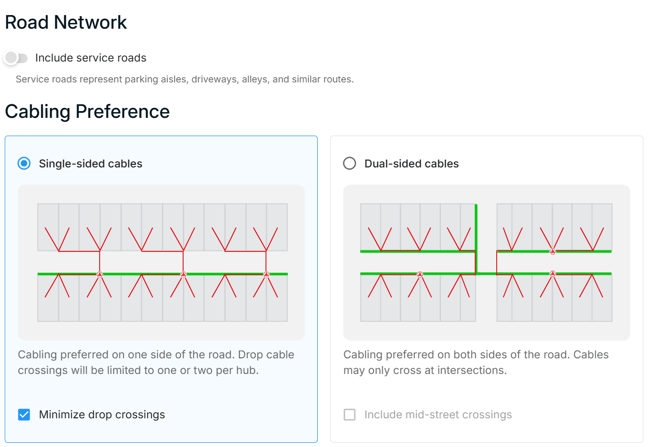
| Road network | Include service roads | Generates path along parking aisles, alleyways and similar roads. Off by default. |
| Cabling preference | Single-sided cables, with the option Minimize drop crossings | Prefers the path on one side of each road, so cables tend to run along that side |
| Dual-sided cables, with the option Include mid-street crossings | Keeps both sides of the road neutral, and sets crossings to avoid, so cables only cross where they need to |
Design preferences are applied when you run data preparation. If you change them afterwards, run data preparation again so your underground network reflects the new settings.
More information: Underground path and points · Path preferencing