![biarri-networks-logo.png]](https://fondhelp.biarrinetworks.com/hs-fs/hubfs/biarri-networks-logo.png?height=40&name=biarri-networks-logo.png)
Plans and designs rarely get finished in one go. They evolve as you try different options and respond to feedback. A FOND project holds a series of versions, so every iteration lives in one place. You can work on the latest version, go back to an earlier one, or compare different approaches.
For example, a project might have one version for each deployment approach you’re evaluating:
- Underground network
- Overhead with minimal underground
- Hybrid underground and overhead
Open the Versions tool
The Versions tool is part of the default project layout. If you can’t see it:
- In the project menu, choose View › Layout.
- Tick Versions.
The tool opens in your project layout, and you can move and resize it like any other panel. To put all panels back where they started, choose View › Layout › Default Layout.
Another way to quickly option versions is to use the popout button in the version selector on the map: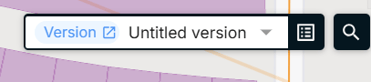
Switch between versions
There are two ways to switch versions:
- On the map: use the Version selector at the top of the map, then choose a version from the list.
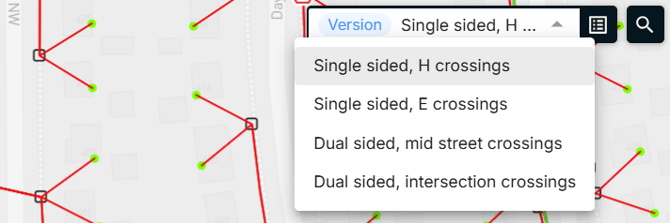
- In the Versions tool: tick the version you want and click View.
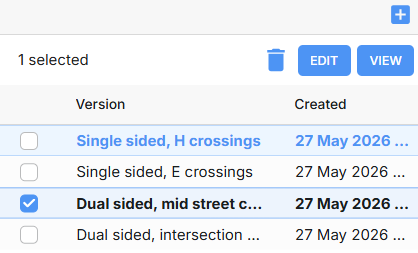
The map, legend, features table and properties panel all update to show the selected version.
Create a version
- In the Versions tool, click the + button.
- Enter a Name that describes what’s different about this version.
- Choose how to start:
- Blank version: start from scratch, with no architecture, input data or design.
- Continue from most recent version: copy the architecture, input data and design from your most recent version, ready for you to change.
- Click Submit.
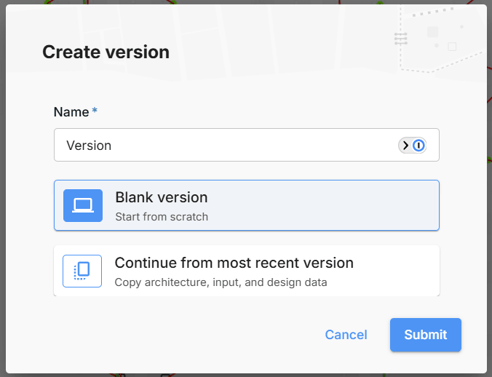
Tip: To try a variation on your current work, choose Continue from most recent version. Then you only need to change what’s different, such as the architecture or a few edits to the input data, and generate again.
Rename a version
In the Versions tool, tick the version you want and then click Edit. Or, simply double click the name in order to modify it.
Delete a version
In the Versions tool, tick the version you want and then click the trash icon.
Versions, comments and attachments
- Comments belong to the version they were made on. In the comments panel, filter by version to see the discussion for just that version. See How to collaborate through comments.
- Attachments can be tagged with the version they relate to. See How to add and export project attachments.