![biarri-networks-logo.png]](https://fondhelp.biarrinetworks.com/hs-fs/hubfs/biarri-networks-logo.png?height=40&name=biarri-networks-logo.png)
Once your plan has generated, FOND gives you everything you need to judge whether the network is worth building: the plan itself, its bill of materials (BOM), Cost to Serve, and a financial report.
Review the plan
Start by checking that the plan makes sense:
- Use the legend to look at one tier at a time: drop, distribution, then feeder.
- Click hubs and cables to see their details.
- Use the features table to find, for example, long cables or hubs serving only a few premises.
If something doesn’t look right, adjust your architecture, input data or path preferences, then update the plan.
More information: Inspecting the design · Controlling the design · Network design elements
Explore the bill of materials
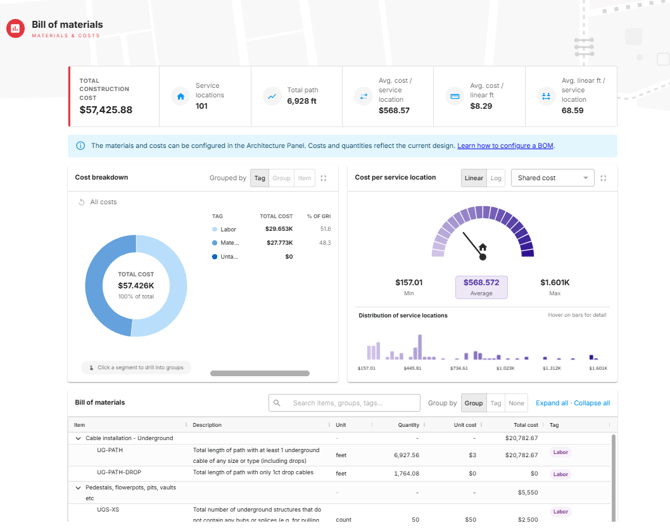
The interactive BOM shows the materials and costs for your plan:
- Key figures such as cost per passing
- Charts breaking down the costs
- A table of every item
Open it from Attachment > Bill of materials.
The BOM is calculated from the costs in your architecture, so it’s only as accurate as your BOM configuration. See Configuring your BOM.
Understand Cost to Serve
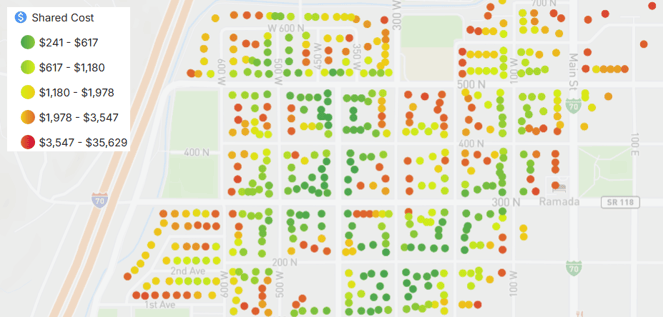
Cost to Serve shows how the cost of connecting each address varies across your area. You’ll find it in the legend, where you can color addresses by:
- Individual cost: the cost of connecting each address on its own
- Shared cost: its share of the network it uses
- Accumulated cost: the two combined
Use it to find expensive pockets that could be left out, or saved for a later phase.
More information: What is Cost to Serve?
Export your plan
Export your plan’s layers for your GIS tools, and include the BOM if you need it in a spreadsheet. You can also split hubs and cables into separate layers for each tier.
More information: Export a project
Create a financial report
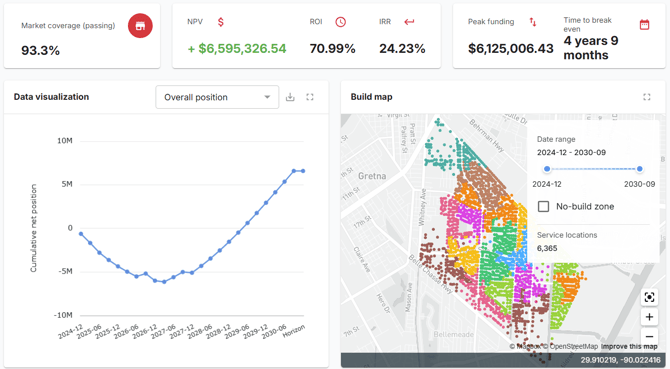
A financial report turns your plan into a business case. It projects revenue, costs and profitability over time, and recommends what to build.
- Make sure your BOM is configured and your Demand Model is complete.
- From the Report step, click Configure Report.
- Work through the report settings, then generate the report.
More information: Generating your first report · Minimum report requirements
Share your plan
Share the project with colleagues or stakeholders so they can review it on the map and comment. See How to share a project or folder.