![biarri-networks-logo.png]](https://fondhelp.biarrinetworks.com/hs-fs/hubfs/biarri-networks-logo.png?height=40&name=biarri-networks-logo.png)
Cost to Serve shows what it costs to serve each address in your plan or design. Rather than dividing the total build cost evenly, FOND traces every item in your bill of materials (every cable, hub, splice and structure) to the addresses that depend on it.
Cost to Serve is calculated automatically every time you generate a plan or design in Fiber Planner and Fiber Design.
Why not just use an average?
The usual way to cost a network is to divide the total build cost by the number of addresses. That gives you an average cost per passing, but no address actually costs the average. Some are cheap to reach because they share equipment with many neighbors. Others are expensive because they need their own long cable run.
Here’s a simple example. Three addresses share a hub, but address C sits at the end of a long cable that serves only C:
| Item | Cost | Serves |
|---|---|---|
| Hub | $3,000 | A, B and C |
| Cable to C | $2,000 | C only |
| Drop to each address | $500 each | Each address individually |
| Total | $6,500 |
The average says every address costs $2,167. Cost to Serve tells a different story:
| Individual cost | Shared cost | Accumulated cost | |
|---|---|---|---|
| A | $500 | $1,500 | $3,500 |
| B | $500 | $1,500 | $3,500 |
| C | $2,500 | $3,500 | $5,500 |
| Total | $6,500 |
C costs more than twice as much as A or B to serve. The average hides that, but Cost to Serve shows it, and shows why: the extra cost comes from the cable that serves C alone.
The three cost types
Each cost type answers a different question.
| Shared cost: “What is each address’s fair share of the build?” |
Each item’s cost is split evenly between the addresses that rely on it, then added up for each address. The hub in the example serves three addresses, so each gets $1,000 of it. Shared costs always add up to your total build cost. That makes shared cost the best measure for comparing addresses, finding expensive areas, and building a business case. |
| Individual cost: “How much would I save by not serving this address?” |
The cost of the items that serve only this address, and nothing else. If you dropped address C from the example, you’d save its cable and its drop: $2,500. Dropping A saves only $500, because the hub is still needed for B and C. Use individual cost to find the addresses that are most expensive to include, and that are worth leaving out or deferring. |
| Accumulated cost: “What’s the least I’d have to build to reach this address?” | The cost of everything upstream of the address: every item between it and the source of the network. Reaching C at all means building the hub, the cable to C and C’s drop: $5,500. Accumulated cost is lowest near the central office and rises along long routes, so it shows where cost builds up along the network. |
Individual and accumulated costs don’t add up to your total build cost, because items are counted for more than one address, or not counted at all. Only shared cost adds up to the total.
Where to find Cost to Serve
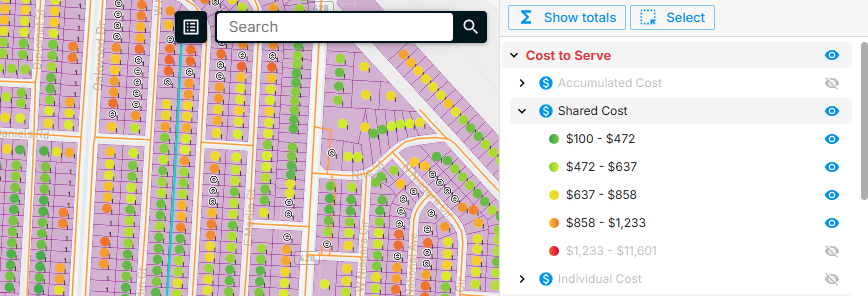
- On the map: in the legend, open the Cost to Serve group and show Shared Cost, Individual Cost or Accumulated Cost. Addresses are colored from low to high cost, like a heat map.
- For one address: click it on the map to see its three costs in the properties panel.
- For many addresses: open the features table for service locations to sort, filter and compare costs. See Inspecting the design.
- As a distribution: the Cost per service location chart in the bill of materials shows the minimum, average and maximum, and how many addresses fall into each cost band. See Bill of materials.
Ways to use Cost to Serve
- Find expensive pockets. Show shared cost on the map to see which areas cost most to serve.
- Decide what to defer. Sort by individual cost to find the addresses where leaving them out saves the most. Try the plan without them, and compare the BOMs.
- Set a threshold. Decide what you’re willing to spend per address, then filter for addresses above it.
- Plan phases. Use accumulated cost to see which areas you can reach cheaply first, and which need major upstream investment.
- Build your business case. Costs are only one part of the story, so use our financial reporting tools to model them along with with revenue to see which areas pay off. See Generating your first report.
Getting accurate results
Cost to Serve is only as good as the information behind it:
- Your BOM. Costs come from your BOM rules. Any item without a rule isn’t costed or allocated. Set up your BOM before you rely on Cost to Serve. See Configuring your BOM.
- Your unit costs. Allocations are only as accurate as the costs you enter.
- Your design. A Fiber Planner plan gives you a feasibility-level picture. A Fiber Design gives you a more detailed one, because the network itself is more detailed.
If you change your BOM rules, click Update BOM, then check that Cost to Serve has updated.
Export Cost to Serve
Cost to Serve values are stored on each address in the service location layer. To use them in another tool, export that layer. See Export a project.